

Docs Builder
Saving, Images and Privacy
On this page
Saved in the browser
Every change is saved automatically in the browser's storage (IndexedDB), with all files of the project: designs, card data, images and fonts.
- Closing the tab loses nothing. The last project opens again on the next visit, and the project menu lists every saved project.
- An example is only saved once you change it, and opening an example from the menu always gives a fresh copy.
- The editor asks the browser to keep this storage (
navigator.storage.persist()), but clearing site data still deletes it. Use Export project file (project menu) to keep a copy.
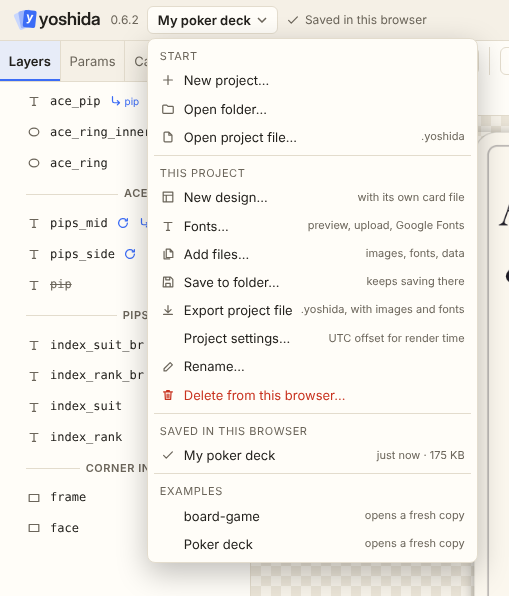
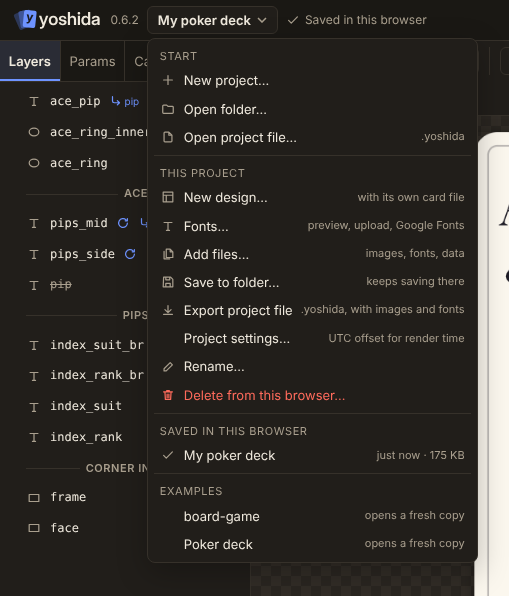
The project menu
The project's name in the top bar opens the menu, in sections:
- Start: new project, open a folder, open a project file (
.yoshida). - This project: new design (with its own card file), add files, save to a folder, export the project file, rename, delete from this browser.
- Saved in this browser and Examples.
Next to it the editor shows whether the project is saved in this browser.
Open a folder, save to a folder
- Open a folder: read and write in Chromium-based browsers (Chrome, Edge), read-only elsewhere.
- Save to folder… (Chromium, in the project menu): write the whole project to a folder you pick and keep saving there; a Save button in the top bar then writes the changed files. The result is a normal project folder you can render with the command line or commit to git.
Export and open a project file
Export project file (project menu) downloads the whole project as <name>.yoshida, a zip with one folder inside, files at their project paths (images and fonts as files, not base64). It opens again with Open project file… (or by dropping it on the window); unpacked, it is a normal project folder for the CLI and the server.
The project file is an ordinary zip with the media type application/vnd.yoshida+zip, so renaming it to .zip lets any archive tool open it. When opening, the editor removes a single top folder and uses its name as the project name. Open project file… also accepts a plain .zip of a project folder, such as an older export.
Images
Images are added with:
- Choose or upload an image in an image layer, an image param's default or a card's image field,
- Add files in the project menu,
- the upload button in the Files tab,
- or by dropping files on the window.
They are copied into the project as assets/images/<name> (or the folder chosen in the Files tab) and referenced by that project path, never by a path on your computer. URLs (https://…) work too; the browser downloads them from that site, which must allow it with CORS headers. See Layer: image.
PNG files
Every PNG that yoshida writes (command line, editor, server) contains only the image: no text chunks, no project, card or user data, no timestamp and no color profile. When the design sets canvas.dpi, the resolution is stored too (a pHYs chunk), so image viewers and print dialogs know the printed size. Output is 8-bit RGBA, or 16-bit with --16bit (or 16 bit in the export dialog).
JPEG and WebP files from the export dialog are written by the browser's encoders and hold only the image; JPEG files carry the dpi in their JFIF header, WebP files carry none.
Image PDF files (the export dialog's PDF with Pages as: Image, yoshida render --pdf, the server's "format": "pdf") hold the cards as images, one page per card, and the page sizes; nothing else from the project. See Command Line: PDF. Vector PDFs are described below.
Resolution
Exports can be rendered at up to 4x the design size, in between too (the export dialog's Resolution, by scale or by a target dpi; yoshida render --scale; the server's "scale"), for sharper print or zoom. Text, shapes, strokes, images and effects are drawn at that size, not scaled up afterwards. The printed size stays the same: PNG and JPEG files store the design's dpi times the resolution, and a PDF page keeps the size it has at 1x (without a canvas.dpi too). The sharpen, detail and edge filters work on neighbouring pixels, so at a higher resolution they look a little finer. SVG files and vector PDFs are sharp at any zoom anyway; they use the resolution only for the parts that stay pixels (see below), and 2x when none is given.
SVG and vector PDF
SVG files (the export dialog's SVG, yoshida render --svg, the server's "format": "svg") and vector PDFs (the editor's PDF button, the export dialog's PDF with Pages as: Vector, yoshida render --pdf --vector, the server's "vector": true) hold each card as a drawing that stays sharp at any zoom:
- Shapes as paths, and text as the outlines of the letters it uses. The font files are not in the file, and neither are the characters, so the text cannot be selected or searched.
- Every image the card shows, whole, even when the layer shows only part of it (
fit: cover, a crop, the edge of the canvas). An SVG keeps the compressed image data of PNG and JPEG images, a vector PDF that of JPEG images; other images are stored as pixels. Text chunks, EXIF data (camera, date, location), XMP, color profiles and anything appended to an image file are left out. - A layer or group with a
sharpen,detail,edge_enhanceorfind_edgeseffect as pixels, at the export resolution (the export dialog's Resolution,--scaleor"scale"; 2x when not given).
Nothing else from the project: no card data, file or layer names, user data or timestamp. With canvas.dpi, an SVG's width and height are the printed size in millimetres, and a vector PDF's pages have the same size, trim box and crop marks as the image PDF.
Sizing a card for print
yoshida draws in pixels. Pick the canvas size from the print size, pixels = millimetres / 25.4 x dpi, rounded, and write the dpi into canvas.dpi so PNG, SVG and PDF files carry the printed size. A vector PDF or an SVG stays sharp at any print size, but images in the card still have only the pixels they have.
| Print size | 200 dpi | 300 dpi |
|---|---|---|
| A4 landscape, 297 x 210 mm | 2339 x 1654 | 3508 x 2480 |
| Poker card, 63 x 88 mm | 496 x 693 | 744 x 1039 |
For bleed, add it to the canvas on every side (3 mm at 300 dpi is about 35 px) and set canvas.bleed to it. Keep important content inside the trim line. Crop marks (--crop-marks, the editor's PDF export of a design with a bleed, or Crop marks: On in the export dialog, which also turns them off with Off) and the PDF trim box sit at that line. Print at 100 % (no "fit to page").
"canvas": { "width": 814, "height": 1109, "dpi": 300, "bleed": 35 }That is a 63 x 88 mm poker card with 3 mm bleed: 744 + 2 x 35 by 1039 + 2 x 35 pixels.
Privacy
- Your project content is never sent to a server. Rendering runs in the browser (WebAssembly), and projects live in the browser's storage.
- Usage statistics are optional anonymous counts that go only to the server that hosts the editor, after a start-up notice. You can switch them off, or see exactly what was sent, in Privacy (top bar). A copy of the editor opened from plain files, or served by something other than
yoshida-server, sends nothing. See Usage Statistics. - Google Fonts in the Fonts window is off until you allow it. Once allowed, the browser contacts
fonts.googleapis.com,fonts.gstatic.comandraw.githubusercontent.com. Google receives your IP address and the preview text. Project files are not sent. The choice is remembered in this browser, and you can turn it off in the Fonts window. - The only upload is the optional Render on server export (ZIP and PDF, and PNG, SVG and PDF files and sheets from the export dialog). The switch appears only when the editor is served by
yoshida-serverwith rendering enabled, and nothing is sent unless you switch it on. The progress window then logs what is uploaded and where. See Server and Docker. - Images given as
https://URLs are downloaded by your browser directly from the site that hosts them. - The hosted editor at https://yoshida.xoyz.dev/editor/ is a static site on GitHub Pages: it has no backend that could receive your data. See CI and Deployment.
Fonts and licenses
Fonts you add stay in your project. The Fonts window shows each font's license and warns when a license file is missing or limits sharing. That is not legal advice. Make sure you may use and redistribute your fonts before you share a project folder or a .yoshida project file. The fonts in the examples are listed with their licenses in Third-Party Notices.