

Docs Builder
Builder: Expression Editor
On this page
Expression and template fields in the inspector are small code editors for expressions and templates.
Highlighting
Numbers and units, strings, colors (with a swatch), @layer references and their fields, params, repeat names, built-ins, functions, keywords and operators each get their own color. Unknown names are underlined. In templates the {…} holes are tinted.
The editor uses the same parser as the core, so what it marks is exactly what loading the design reports. Every broken spot gets a red mark, not only the first one.
Suggestions
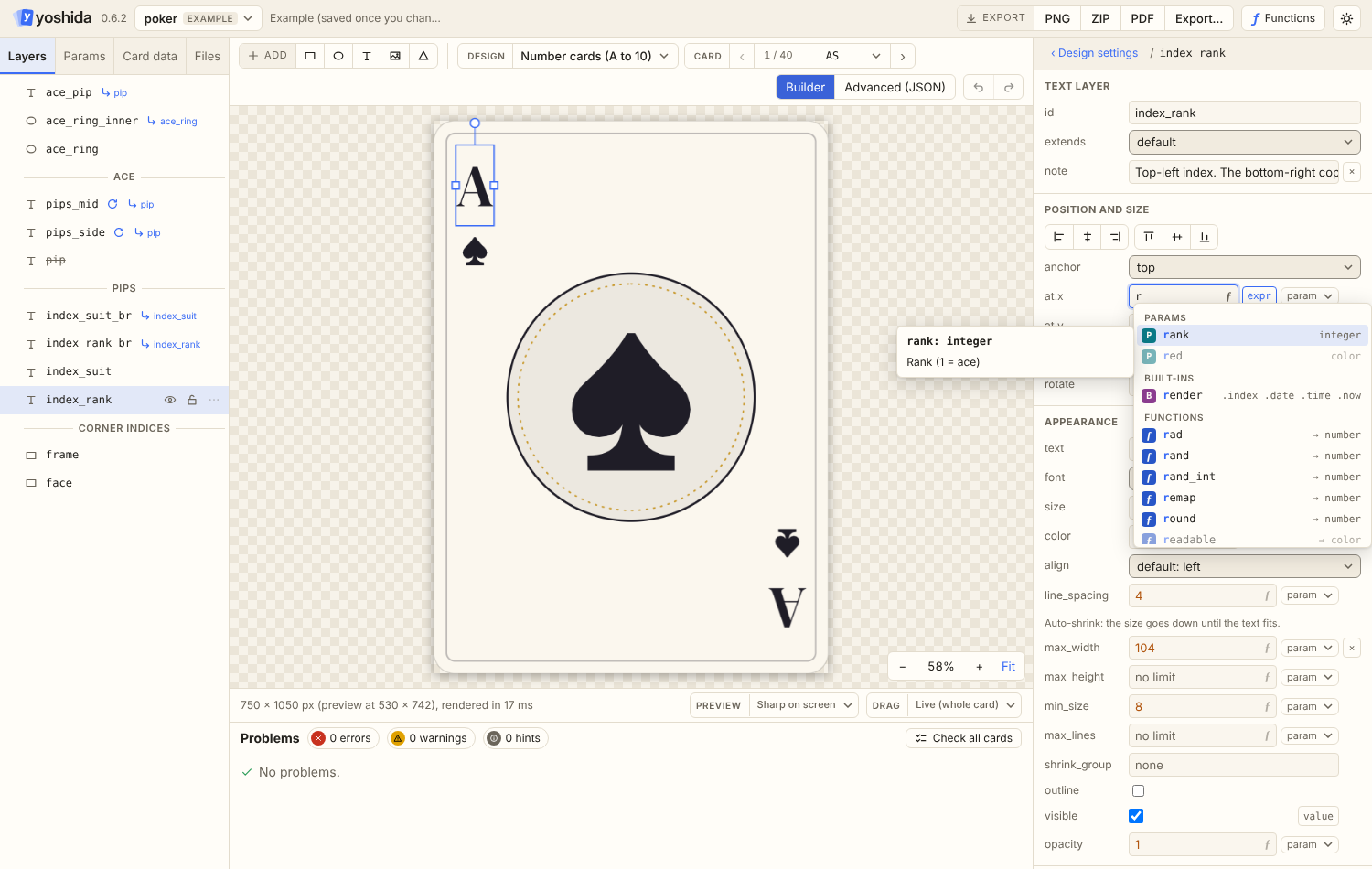
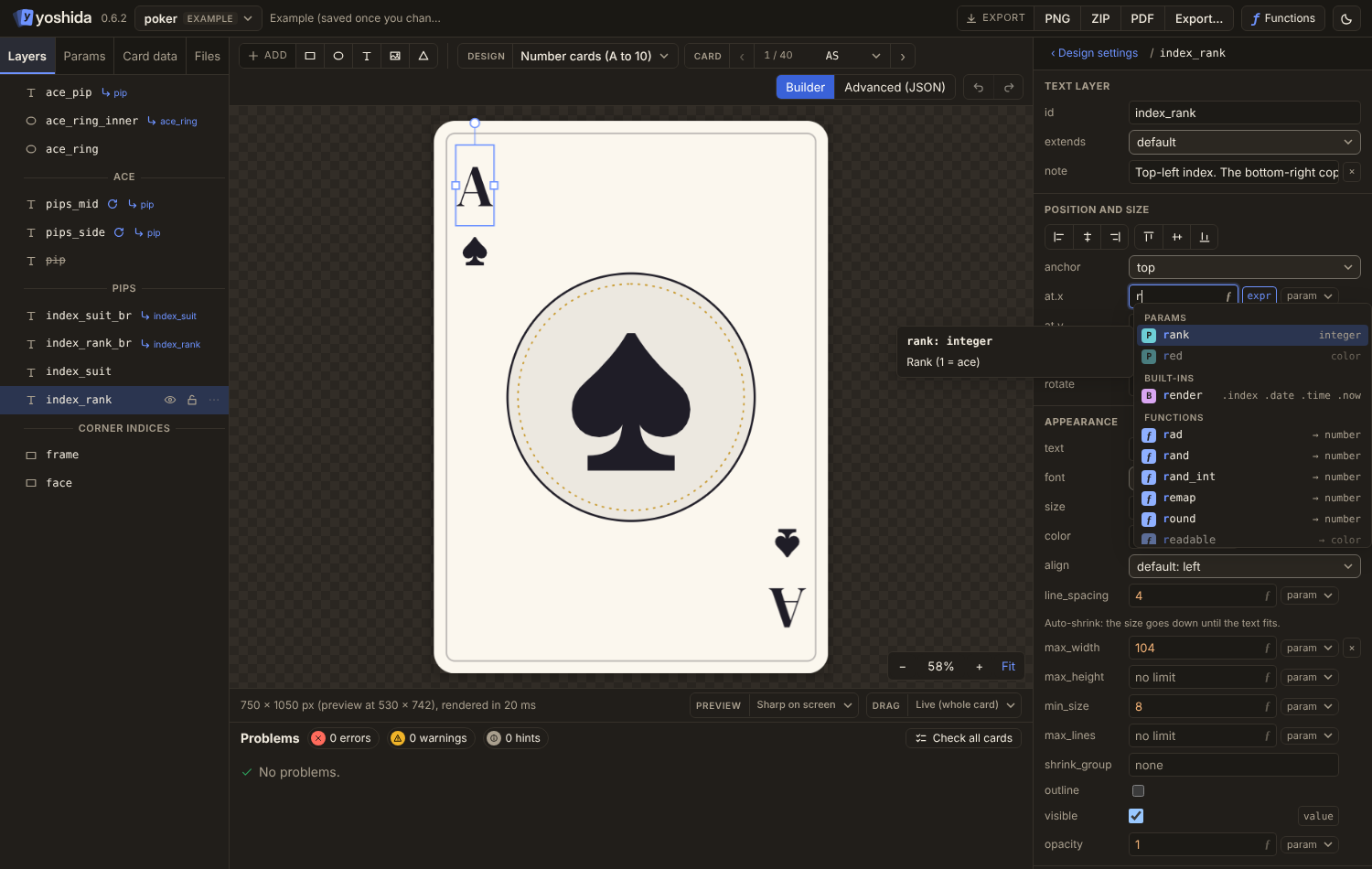
As you type, the editor suggests, grouped and typed:
- repeat names and item fields,
- params, with their type, label and note,
@layerids and then their fields (@panel.listsbounds.left...bounds.cy),canvas.,card.,render.,- the keys of list params, such as
stats.Speed, taken from the cards' values, - functions, with signature, description and example,
- keywords.
Suggestions that do not fit the field (a color in a number field) are ranked lower and say why.
- Ctrl+Space shows everything.
- Enter or Tab inserts.
- Esc closes the list, or reverts the field.
Signature help
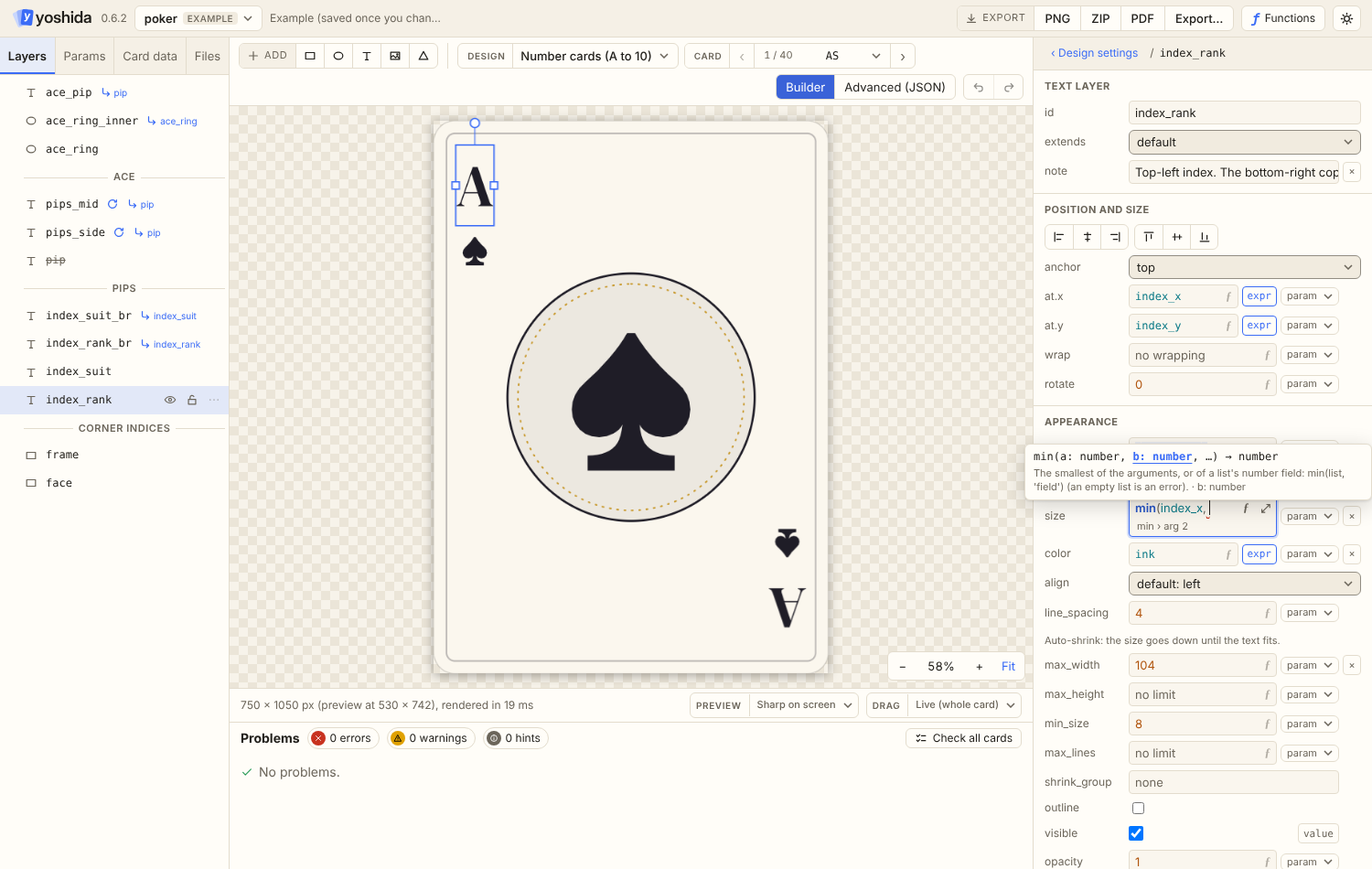
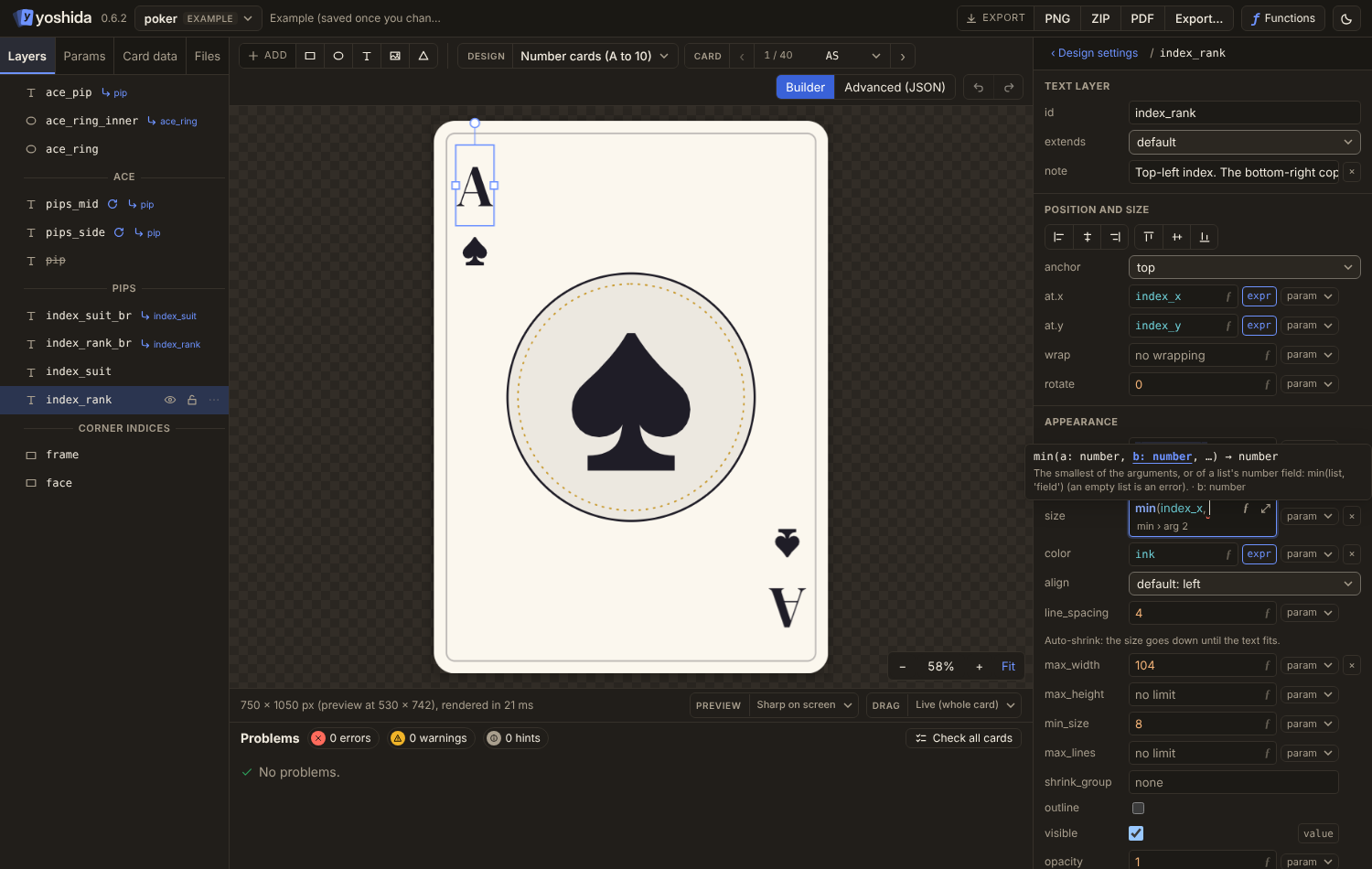
Inside a function call a tooltip shows the signature with the current argument highlighted.
The ƒ reference
The ƒ button in a field opens a reference of everything available there: repeat names, params, layers, built-ins, functions, units, operators and template syntax. Clicking an entry inserts it.
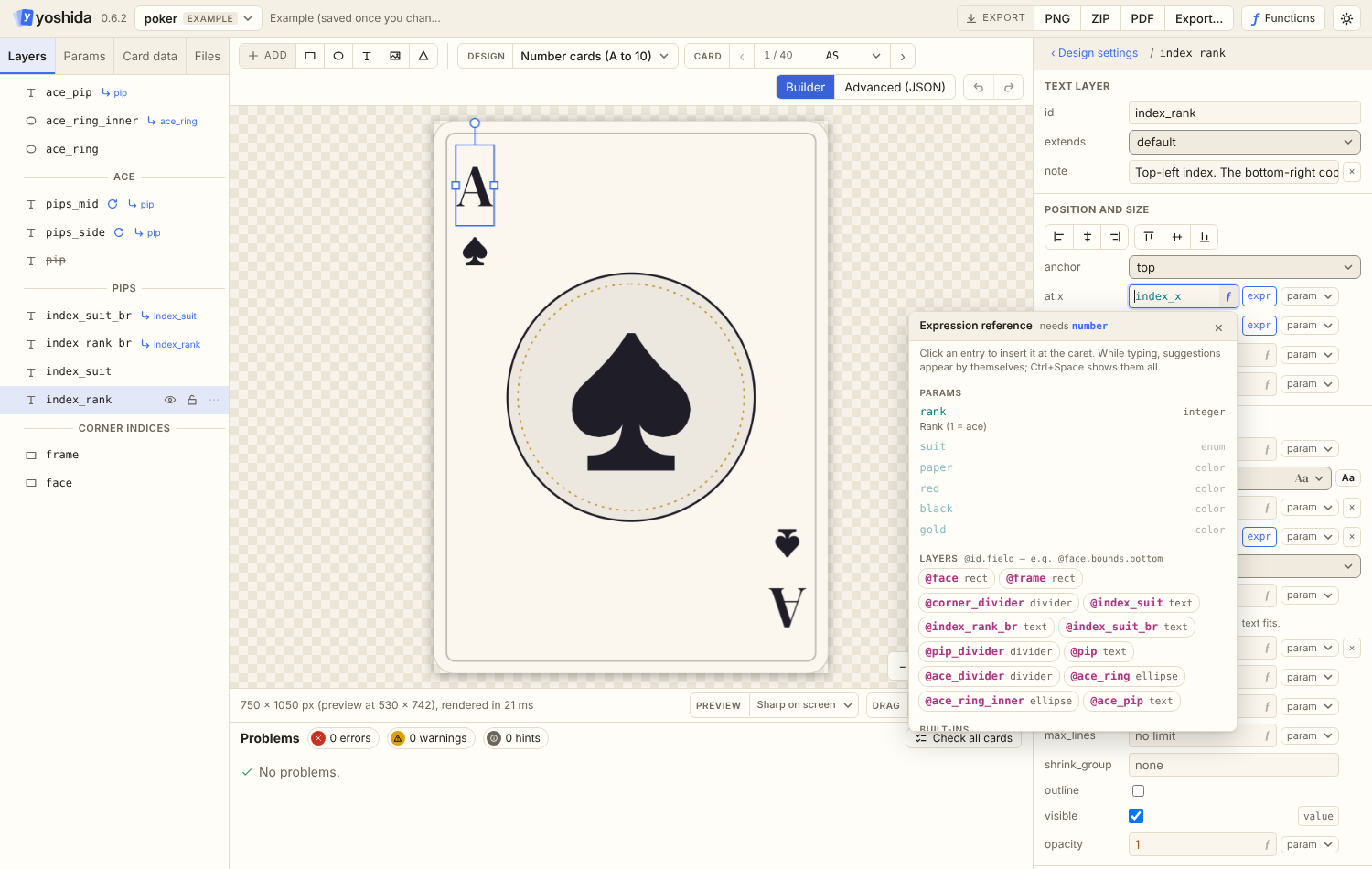
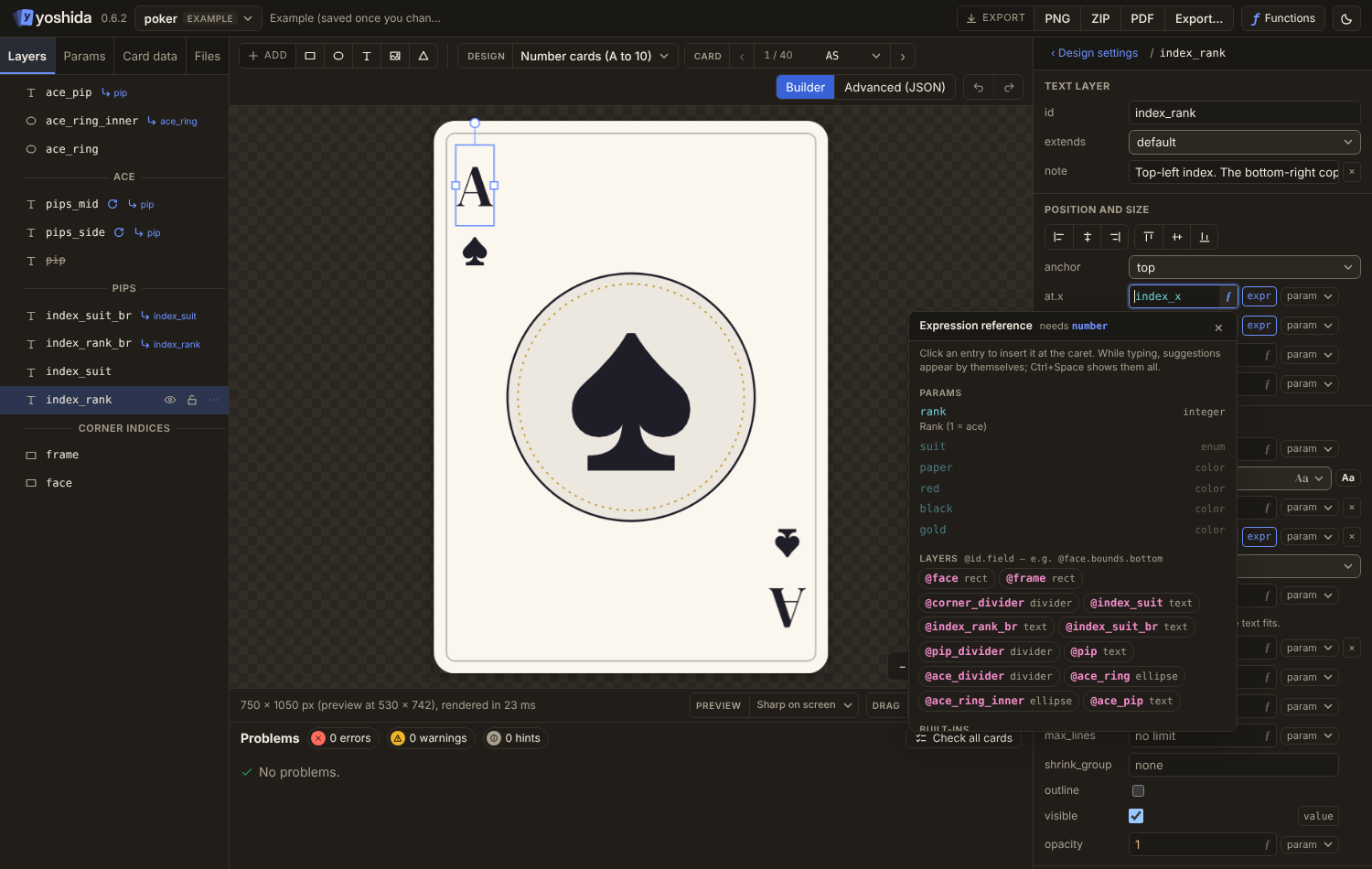
Long expressions
- A field stays on one line and scrolls sideways, like any text box. Shift+Enter starts a new line; once the text has one, the field grows and wraps. Templates always wrap.
- Shift+Alt+F (or Ctrl+Shift+F) reformats the expression: one
?:branch ormatchpair per line, redundant parentheses removed, numbers and colors kept as written. It is a normal edit, so undo brings the old text back. - Under the text, a breadcrumb shows where the caret is, such as
match › arg 4 › with_alpha › arg 1.
The formula window
The ⤢ button in a field (or Ctrl+Shift+E) opens the field in a floating window. Drag it by its title to move it, and drag its corner to make it wider; it remembers where it was. Its height follows what it shows. The ⤢ button only appears when the field holds an expression with parts. A plain number, color, text or name has nothing to take apart, but the shortcut still opens it.
At the top, a path shows where you are, such as whole › result 2. Click a step to go back up. A part that has parts of its own, such as a call inside a match result, has an open button (›) next to it that shows that part on its own. The window shows the current part by its shape:
- a
match(...)as a table of key and result rows, with + row and a delete button per row, - a chain of
?:conditions as when … then … rows and an else row, - a single
?:as when, then and else, - an
in [...]test as chips you can add and remove, - anything else as one text box.
Colors show a swatch. A see-through color shows a checkerboard behind it, the same in light and dark mode. The whole expression stays editable as text under the parts, and both views follow each other. A cell that does not parse keeps what you typed and turns red; the expression changes only once it parses. Edits in the window rewrite the expression in its canonical layout.
Live values. For the card shown on the stage, a part shows its value when the card has one, and the row of a match or ?: chain that was taken is marked. A value that is not there is left out, not shown as a dash. Values come from a real render of the card, so repeat names, function arguments and @layer positions are the actual ones. A field that the card never evaluates (a hidden layer, an unused constant) says so.
Quick actions.
- To match turns a
?:chain that tests one value (k == 'a' ? … : k == 'b' ? … : …, also withk in [...]) into amatch. To ?: chain turns amatchback into a chain of?:conditions. - Extract to moves the part you select out of the expression, into the design, and leaves its name in its place. The two buttons are Constant and Function. Each one shows why it is unavailable in its tooltip.
A constant is a named value of the design, such as a size or a color, that any field can use by name. A function is a named formula with arguments, which any field can call. See Constants and functions for both.
Constant asks for a name in a dialog and moves the part into a new constant. For example, a field holds canvas.w / 2 - 40. Select canvas.w / 2, extract it to the constant half_w, and the design gets:
- constant:
half_w = canvas.w / 2 - field:
half_w - 40
A constant is the same everywhere, so Constant is not offered for a part that uses a repeat name, a function argument or a @layer reference. Those only have a value in one place.
Function also asks for a name. The arguments of the new function are the repeat names and arguments the part uses, so the call takes their place. For example, a field inside a repeat with the index i holds 65 + i * 170. Extract it to the function tile_x:
- function:
tile_x(i) = 65 + i * 170 - field:
tile_x(i)
A repeat over a list gives a name for each item, such as t. An item is not a number, so a part that uses it cannot become an argument, and Function is not offered for it. A part that uses a @layer reference cannot be a function either.
Each extraction is one undo step. Ctrl+Z brings back the expression and removes the new name in one go.
Apply (or Ctrl+Enter in the text) writes the expression to the field. Closing the window applies pending changes too. Esc closes it while it has the focus.
Committing
A field is committed on Enter (Ctrl+Enter in multi-line fields) or when it loses focus. Esc reverts.