

Docs Builder
Builder: Files
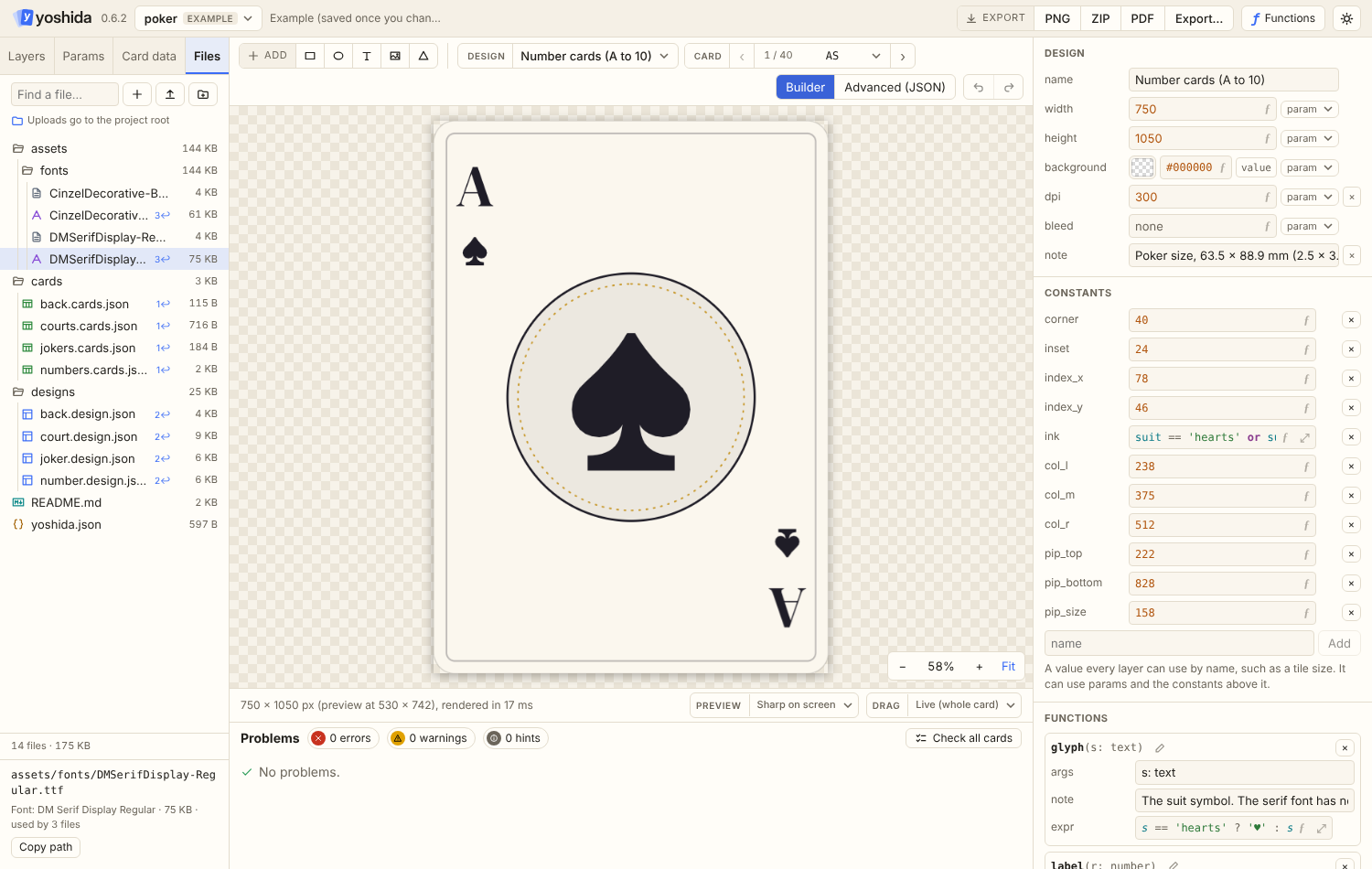
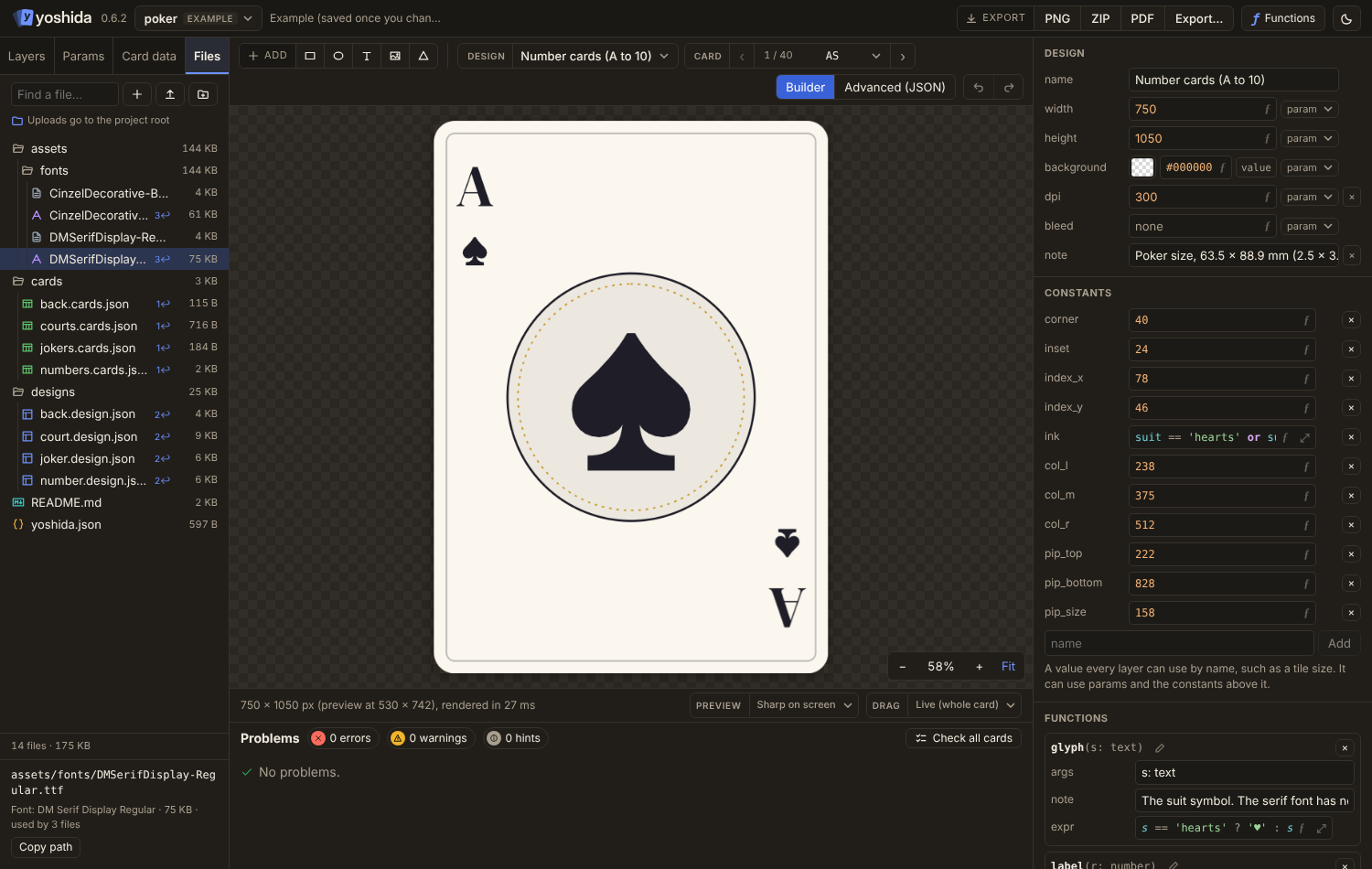
The Files tab shows the project's files as a folder tree.
What it shows
- A coloured icon per kind of file: designs, card data, other JSON (such as
yoshida.json), fonts, Markdown, PDF, text and license files, and images. Images and SVG files show a small thumbnail instead when the browser can draw it. - File sizes in one column on the right, and folder sizes, which add up the files inside. Hover a folder's size for its file count.
- How many files refer to a file (for example
3↩), only when at least one does. Hover the count for the list. - Folders. Clicking a folder makes it the place uploads go (the upload button and Add files in the project menu use it; without a choice, the upload button adds to the project root and Add files sorts by type, so images go to
assets/images/). The line above the tree says where uploads go, and the folder is marked in the tree. The × button on that line goes back to the project root. Clicking a file does not change the folder. - Clicking a file shows its details below the tree: a preview and the pixel size of an image, a preview of an SVG file, the family and style of a font with sample text set in it, what a JSON file is (a design and its name, card data and the number of cards, or the project manifest), the size, and which files use it.
- Only the tree scrolls: the search field stays at the top, and the file total and the selected file's details stay at the bottom.
Actions
Right-click for: open, rename, duplicate, upload here, new folder, delete (which tells you what uses the file).
- Drag files onto a folder to move them, or drop files from your computer onto a folder.
- Dropping files on the window outside the tree sorts them by type: images go to
assets/images/, fonts toassets/fonts/,*.design.jsontodesigns/,*.cards.*tocards/, and a single dropped.yoshidaproject file (or a.zipfrom an older export) opens as a project. - Empty folders are kept with a hidden
.keepfile.
Renames rewrite references
Renaming or moving a file rewrites every reference to it in designs and card data (JSON and CSV), in one undo step. Path templates such as attribute-{attribute}.png cannot be rewritten; the editor lists them first so you can fix them by hand.
Advanced view
The Advanced (JSON) view uses the same tree next to the code editor. A picture (SVG included) is shown in place of the editor, and a font as a specimen: its letters, digits and a sentence in four sizes.
The SVG preview is drawn by the browser, the card by yoshida's own SVG reader, so a file that uses something the reader lacks can look right here and different on the card. See Builder.